Computers, Tablets & Accessories / PRODUCT GUIDE
Anker 553 USB-C Hub guide: will the A8380 drive both desk monitors?
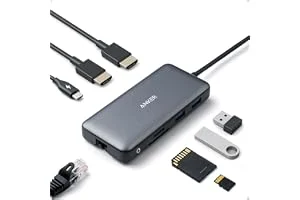
The Anker 553 combines two HDMI sockets, Gigabit Ethernet and card readers on one laptop connection. Its value as a desk dock depends on what your laptop can send to those HDMI ports.
As an Amazon Associate I earn from qualifying purchases.
Check the computer before pricing a second screen
Find the specifications for the exact USB-C port on your laptop. For video, Anker requires DisplayPort Alt Mode. On a Windows laptop that supports the appropriate output, the 553 can extend a desktop across its HDMI displays. On macOS, the two external screens attached to this hub mirror each other because macOS does not support the hub’s MST arrangement. That is usable for sending the same content to a second audience. It will frustrate you if the plan is a spreadsheet on one external monitor and notes on the other.
Budget resolution for both displays
For one HDMI screen, Anker lists up to 4K at 60 Hz with a DisplayPort 1.4 host and up to 4K at 30 Hz with DisplayPort 1.2. Its product table lists dual 2K at 60 Hz with a DP 1.4 Windows host and dual 1080p at 60 Hz with DP 1.2. Use those combinations when planning a two-screen setup. Check the monitor’s HDMI settings and cables and confirm the actual refresh rate after plugging in both displays.
Leave headroom for laptop charging
The hub accepts up to 100 W at its USB-C Power Delivery input and is rated to deliver up to 85 W to a compatible laptop. Your charger and cable also have to support the required power. If the laptop came with a much higher-wattage adapter or drains under a heavy workload, keep the laptop’s own charger on hand. The hub’s USB-C input is for power. Put a data drive into an appropriate USB-A socket.
Decide whether the other ports justify the desk space
The A8380 has two 5 Gb/s USB-A data ports, SD and microSD UHS-I readers and wired Ethernet rated at up to 1 Gb/s. That is a useful combination for a laptop with a wired network and a camera card on the same desk. Two USB-A sockets can fill quickly if you leave a receiver and a backup drive connected. If your work is mostly offloading UHS-II cards, budget for a compatible higher-speed reader separately.
Try your work setup before tidying the cables
Start with one monitor, then connect the second and check that each is independently selectable in display settings. Plug in power and check the host’s charging indicator under a typical workload. If the desk uses wired Ethernet, briefly disconnect Wi-Fi to confirm the cable is doing the work. This guide is based on Anker’s specifications and support materials. Ryan did not benchmark this setup.
Compare UGREEN CM478 for a one-screen desk
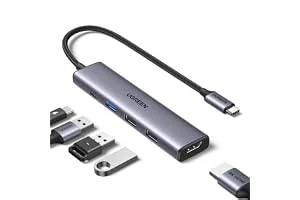
UGREEN’s 15495 hub has one HDMI socket rated at 4K at 30 Hz and three USB-A data ports. Pick it for one presentation display and basic peripherals if wired Ethernet and removable camera media are handled elsewhere. Its one fast USB-A socket is the one to save for a transfer drive.
Compare Acer UH501 for a computer that still has USB-A
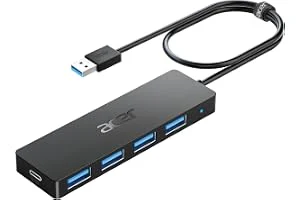
The four-port Acer connects through USB-A and is a simpler fit for a keyboard, mouse and other data peripherals. It adds no HDMI or laptop charging. If your desktop already has the display outputs you need, this is a more direct solution to crowded USB ports.
Compare the shopping options
UGREEN CM478 5-in-1 hub — one HDMI output and three USB-A data ports
Acer UH501 four-port hub — USB-A expansion for existing display setups
Sources and review basis
Researched November 20, 2026. Ryan’s own experience is attributed where supplied. Other judgments are buying advice based on the cited product information, not a hands-on comparison or laboratory test. Prices and availability are checked at the retailer.